
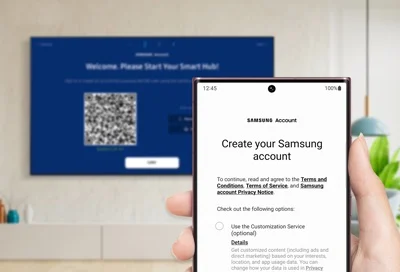
What a Samsung account does on TV
A Samsung account connects your TV to Samsung services like app downloads, Smart Hub personalization, and payment options. Once signed in, you can install apps, restore previous app lists, and manage subscriptions more easily on the TV.
Requirements before you sign in
Before starting, check a few basics so signin goes smoothly. Missing any of these points is a common reason for login errors.
· Make sure the TV is connected to the internet via WiFi or LAN.
· Have your Samsung account email and password ready, or access to your Google account if you plan to use Google signin.
· Keep a phone or PC nearby if you want to use QR code or website signin options.
Ways to sign in on a Samsung TV
Newer Samsung TVs give you several ways to sign in so you can pick what is easiest.
· Scan a QR code with your phone and complete signin from the SmartThings app or browser.
· Enter your email and password directly using the TV remote on the signin screen.
· Use a special website link signin.samsung.com/key and code to authorize the TV from a phone or computer browser.
Method 1: Sign in using QR code
This method is usually the fastest if you already use a Samsung or Android phone.
1. On the TV, open Settings or Smart Hub and go to Samsung Account or Profile.
2. Choose Sign in; a QR code appears on the TV screen.
3. On your phone, open the Camera or the SmartThings app and scan the QR code.
4. Follow the link that appears, then log in with your Samsung account on the phone if prompted.
5. Confirm that you want to sign in on the TV; the TV will complete login automatically.
When this works, you avoid typing long passwords with the remote, which is ideal for complex passwords and twostep verification.
Method 2: Sign in directly on the TV
If you prefer doing everything from the TV itself, use the onscreen form.
1. Press the Home or Smart Hub button on the remote.
2. Select Settings, then go to General or All Settings, and open Samsung Account.
3. Choose Sign in. A form appears for email and password.
4. Enter the Samsung account email address, then select Next.
5. Enter your password carefully and select Sign in.
If twostep verification is enabled, the TV may prompt you to approve a notification or enter a code received on your phone or email. After verification, you will be signed in and can access apps and services that use your Samsung account.
You May Also Like – g.co/playcontinue – Sign In Google Play Account
Method 3: Sign in using a website and code
Some models show a web address and a onetime code you can use on another device.
1. Open Samsung Account on the TV and select the website signin option if available.
2. The TV displays a URL and an authorization code.
3. On a phone or PC, open a browser and go to the shown URL, then log into your Samsung account.
4. Enter the authorization code from the TV, then confirm adding the TV to your account.
When you finish, the TV should sign in automatically and become linked as a trusted device in your Samsung account.
Using Google account to sign in on TV
On some recent Samsung TVs, you can sign in with your Google account instead of typing a new email and password.
· Choose the Google signin option on the Samsung account screen if available.
· Follow the instructions to select your Google account and grant access.
This lets you reuse an existing Google login while still linking to a Samsung account profile on the TV.
You May Also Like – General Steps to Activate Global TV Using watch.globaltv/activate.
What you can do after signing in
Once signed in, the TV unlocks a range of features that depend on the Samsung account.
· Install and update apps from Smart Hub and restore previous app lists.
· Manage payment methods via Samsung Checkout to pay for apps or subscriptions on the TV.
· Sync settings, watchlists, and recommendations across TVs and compatible devices using the same account.
You may also be prompted to agree to terms and conditions or register a card, but these steps can usually be skipped or done later from the settings menu.
Fixing common signin problems on Samsung TV
If signin fails or you see error messages, a few checks resolve most issues.
· Restart the TV and the internet router to clear temporary glitches and connection problems.
· Ensure the TV date and time are correct, because wrong time settings can break secure login.
· If you forgot your password or ID, use the Find ID or Reset password link on the Samsung account website from a phone or PC.
· If twostep codes never arrive, check spam folders and make sure your registered email and phone number are still valid.
Read More – How to Activate CTV Using ctv.ca/activate.
When errors persist across devices, changing the password and reviewing trusted devices in the Samsung account security page can help secure your account and refresh login sessions.